What's included in this guide
1What this is
Traffic and Dragons is a sword & sorcery role-playing game that runs entirely in your browser. You create a character, and an AI Game Master narrates a living adventure around you — tracking your health, gold, inventory, quests, and the people you meet, across sessions. There's nothing to install and nothing to buy: you sign in with Google or GitHub, and during the beta the operator's account powers the Game Master.
2Sign in (required)
- Open the game (link in step 3) and press Sign in. Google or GitHub — whichever you already have.
- Approve the sign-in in the popup. That is the whole account: no email to verify, no credits to buy.
- The operator grants each tester a monthly allowance of turns. File ▸ Account shows how many you have used.
3Open the game
- Open the link above in Chrome (Android/desktop) or Safari (iPhone/iPad). Other modern browsers work too.
- Press Sign in and approve the popup.
- Fastest way in: open the Home page (File ▸ 🏠 Home), pick one of the three pre-made heroes and a story, and press Play. The Game Master opens your first scene. The character wizard is the custom path — it is there when you want a hero of your own.
4Put it on your home screen
The game is a proper web app — installed to your home screen it opens fullscreen with its own icon, like any native app.
📱 iPhone / iPad (Safari)
- Open the game in Safari (this only works from Safari).
- Tap the Share button — the square with the arrow pointing up, center-bottom of the screen.
- Scroll down the share sheet and tap Add to Home Screen.
- Tap Add (top-right). The T&D icon appears on your home screen — launch it from there from now on.
🤖 Android (Chrome)
- Open the game in Chrome.
- Tap the ⋮ menu (top-right).
- Tap Add to Home screen (on some phones: Install app).
- Confirm. Launch from the new icon from now on.
🖥 Desktop (Chrome / Edge)
- Look for the install icon (a little monitor with a down-arrow) at the right end of the address bar.
- Click it → Install. The game gets its own window and an entry in your Start menu / dock.
5Create your character
First launch drops you into a six-step character builder. There are no wrong answers — lean into whatever sounds fun:
| Step | What you're choosing |
|---|---|
| 1 · Tone | The flavor of the whole world — High Fantasy, Gritty, Sword & Sorcery, Dark Horror, Political Intrigue, or write your own. This shapes how the Game Master narrates everything. |
| 2 · Identity | Gender, age, and your ancestry — Human, Elf, Dwarf, Gnome, Half-Blood, Hollow-Born, or Cambion, each with sub-lineages and their own stat flavor. |
| 3 · Class | Your profession: Warrior, Rogue, Sorcerer, Ranger, Primal, Paladin, Cleric, Druid, or Necromancer. |
| 4 · Attributes | Your six ability scores. Roll (fate decides, auto-arranged sensibly) or Point Buy (you budget 27 points). Plus your moral alignment. |
| 5 · Finishing touches | Appearance, backstory, and a portrait — upload a picture, or generate one from your character sheet (signed in — it comes from your weekly image allowance). |
| 6 · Review | Name your campaign, pick a starting location and level (1 is the classic experience), optionally add companions, and confirm. |
6Start your campaign & how to play
Hit confirm and the Game Master opens your story with your first scene. From there:
- Type what you do in the box at the bottom — plain English, first person. "I ask the innkeeper about the missing caravan." "I draw my sword." "I search the body." Anything. The world reacts.
- Suggested actions appear as buttons after each scene. Tap one to drop it into the input box (edit it if you like), then send. Long-press (or Ctrl-click) to fire it instantly.
- The dice are real — and yours. When you attempt something chancy the Game Master names the check and you roll; the result is final, and success and failure both push the story somewhere. (Hand the dice back under File ▸ ⚙ Settings ▸ 📖 Narrative options.)
- Your character sheet — tap your name in the top bar (or your own row in the Party panel) — shows everything: health, gold, inventory, spells, skills, relationships. It updates itself as you play.
- Quests arrive as ⚑ opportunities. Open the Quests section of the side panel (or the journal in World State) to accept, decline, and track objectives. Nothing is forced on you.
- Table Talk (tab next to Story) lets you talk to the Game Master out of character — ask rules questions, request a recap, or nudge the tone, without your character saying a word.
- Rest by saying so in the story — the dashed fourth button offers it when you are hurt. A rest restores party health and mana to full, moves the clock to dawn and makes camp — the place you return to if you die.
- Dying. At 0 HP you are down, not dead: struggle or yield, and the story resolves it. A true death brings Death, who walks you back to your last camp — ask one question on the way. Three returns per campaign; the fourth death ends the story with a written ending.
- It remembers. People you meet, places you visit, promises you make — the game files them into long-term memory and the world stays consistent across sessions. Just close the app when you're done; you'll resume exactly where you left off.
7About the UI — a tour of the screen
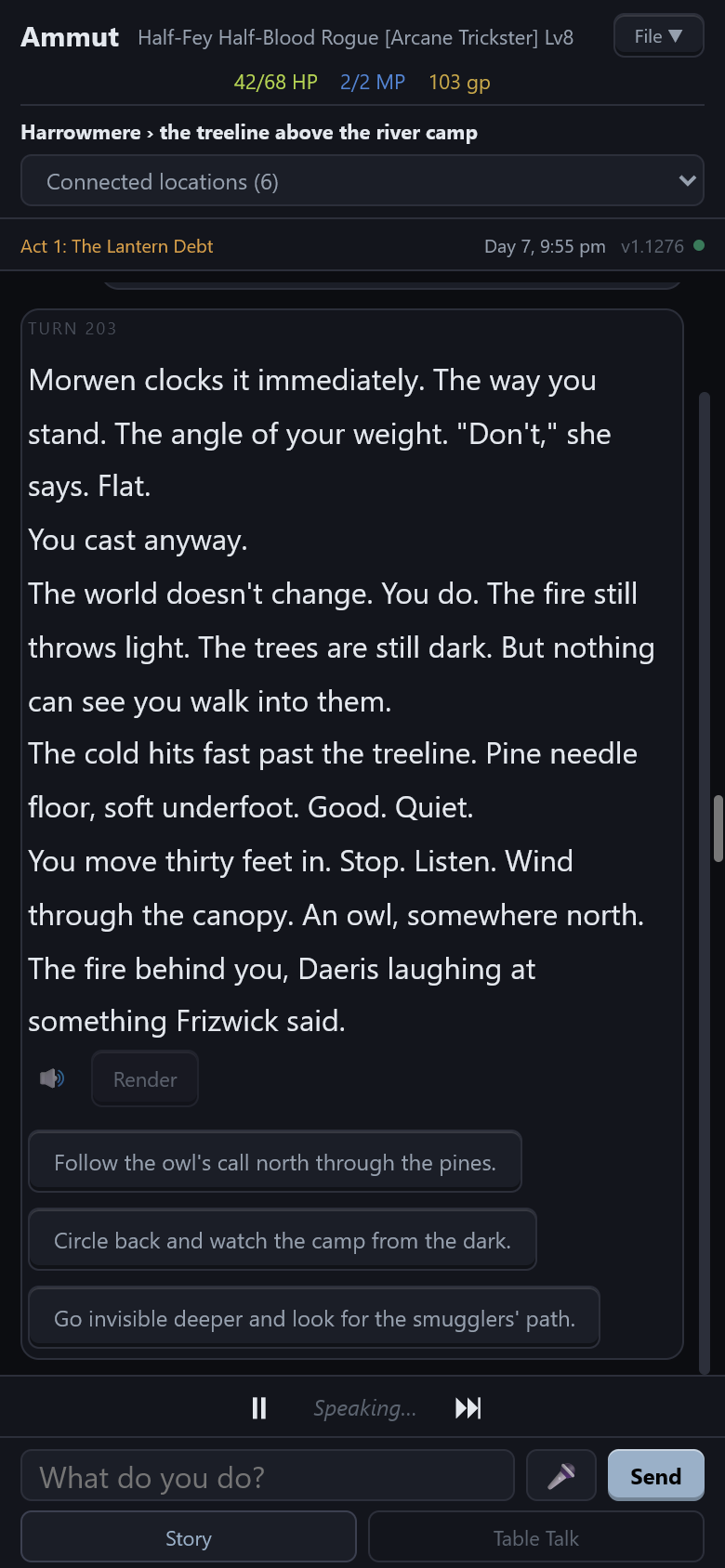
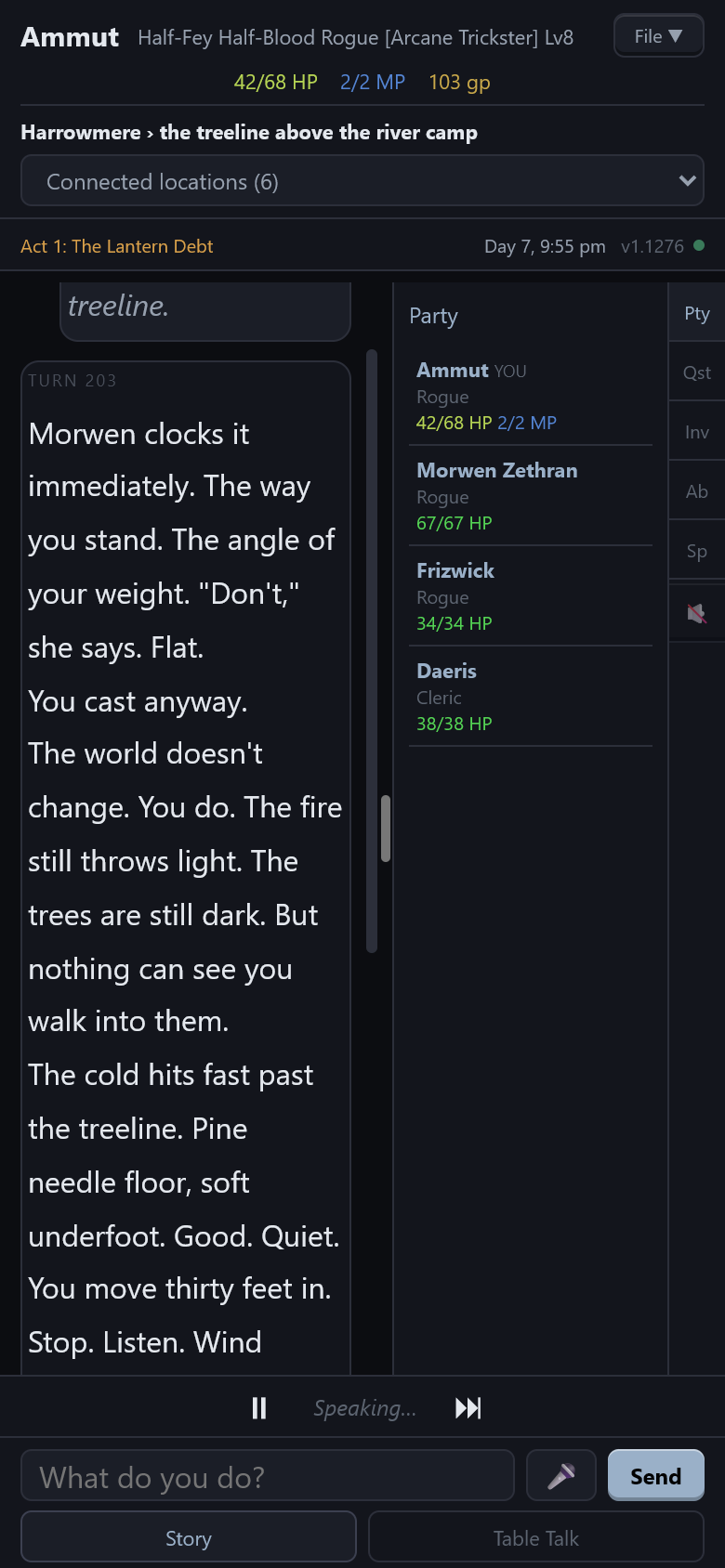
Two views of the same moment on a phone, in the default dark palette (turn Dark mode off for parchment). Desktop lays the same pieces out wider: the side panel ⑥ is always open on the right, and the top bar also carries World State and Render. The numbers match the sections below — hover one for a hint (on a phone, press and hold it), tap it to jump to its section:
1The top bar (your HUD)
Your vital signs at a glance — name, class & level, HP, MP, gold. Tap your name to open your character sheet. File ▾ is everything else — see the next section. On desktop the bar also has World State (a slide-out panel with your location, the time and weather, everyone you have met and the quest journal) and Render (paints the scene); on a phone both live in the File menu.
2Where you are
The place line — the world and the spot within it — and Connected locations, every way out the map knows. Pick one and its sentence lands in the input box for you to send or edit; it never sends by itself. (On desktop the same ways are chips in the top bar.)
3The status strip
The act you are in, the campaign clock (day and hour), the version, and the small dots at the end: green means the Game Master's memory is in good health, and a cloud badge shows while your account syncs. (Desktop shows the memory ticker here — tokens, chapters, people met, turn.)
4The story area
The main scroll — the Game Master's narration, your own lines, dice results, a turn number over each scene. Under the latest scene: 🔊 reads that scene aloud, Render paints it, and Shop appears when there is something for sale where you stand. When a fight starts, a combat tracker — each enemy's health bar and the round — appears at the top of this area and vanishes when the dust settles; tap an enemy's name for what you know about it.
5Suggested actions
Three suggestions from the Game Master and a dashed fourth from the game itself — rest when you are hurt, use an item you carry, take an offered quest, buy something here, or a reckless wildcard. Tap one to edit it; hold it (Ctrl-click on desktop) to send it as it is.
6The side panel
On a phone it hides behind the thin handle at the right edge: swipe in from the right edge — anywhere down the side — or drag the handle left to open it as wide as you like; double-tap the handle to open or close. Down its edge run the tabs — Pty (the party, with everyone's health), Qst (quests: accept, decline, track), Inv, Ab, Sp — and the 🔈 narration toggle. Tap a companion's name for their sheet (your own opens yours, as does your name in the top bar). On desktop the panel is always open with every section in view.
7The voice strip
Appears while the narrator reads — ⏸ pauses and resumes, ⏭ skips ahead. Narration itself is switched on and off with the 🔈 (in the panel's tab column on a phone, in the top bar on desktop).
8The input row
The box where you say what you do (× clears it), the 🎤 mic for dictating instead of typing, and Send. Below it, two tabs: Story (the adventure) and Table Talk (out-of-character talk with the Game Master — a dot marks unread replies).
8About the File menu
File ▾ is home to everything that isn't moment-to-moment play. The headliners:
| Item | What it does |
|---|---|
| 👤 Account… | Your sign-in, the turns you have used this month, and sign out. |
| 🏠 Home | The curated stories, your library, the Blueprint Designer, the Character Editor, the reference bibles and this guide. |
| ❓ Beta guide | This guide, in its own tab — the Player FAQ is linked at its top. |
| 🗣 Talk to… | A spoken conversation with your character or a companion, outside the story — nothing said there changes the campaign. |
| 💾 Save / Load ▶ | 📁 Campaigns… — your saved adventures: run several at once, switch between them, pull one down onto a new device. Save/Load Game (local) — file-based backups of the whole campaign. Export Character — save your hero as a portable .char file or to your account library. Import Character — bring a hero in: play as them in a new campaign, or add them to the current party as a companion. Export as Blueprint — distill your campaign into a reusable template others can play. Save story to account — keep a finished tale as a memento. |
| ⚠ Report bug… | Send a problem report; the form shows exactly what it sends before you send it. |
| ⚙ Settings ▶ | The settings drawer — details below. |
| ⟳ Clear cache & reload | The universal un-sticker. If the game ever looks stale or weird, this is the button. |
Inside ⚙ Settings
| Item | What it does |
|---|---|
| Player rolls own dice | On by default: the Game Master stops at each check and a dialog offers the die — Roll, or Hold back to do something else instead. Nothing else can be typed until you choose; a reload brings the dialog back. The d20 waits at the bottom of the story while the dialog is up, and Roll throws it from where it lies. You throw the d20 (and the damage on a hit). Off lets the Game Master roll. |
| 🎨 Appearance ▶ | 🌙 Dark mode — on by default; off is the parchment palette. Large text — bigger type everywhere; off by default. 🎲 Dice appearance… — the look of the live dice, kept per device. |
| 🔊 Audio ▶ | Voice Settings… — pick the narration voice (the built-in voice needs nothing; signed in, the cloud readers your account includes are listed). UI sounds — small earcons for turns and rolls, on by default. Ambience — a quiet bed of sound that follows the scene, on by default, with its volume slider. |
| 📖 Narrative options ▶ | Narrative rules — house rules the GM must always follow ("no spiders," "my dog is immortal"). ✍ Prose style — the voice the narration is written in; Spare & Mythic to start with. 18+ Adult content — opt into mature language and themes; off by default. Name the stake before a roll — the GM says what is at risk before you throw. |
| 🚗 Auto Mode ▶ | 🚗 Car Mode — hands-free play: it reads the scene aloud, listens for your spoken action, and keeps the loop going; passenger-seat approved. 🎤 Auto-send voice input (spoken actions send themselves), 🚗 Auto-listen after narration, 🛡 Confirm unclear voice input (a muddled dictation is read back before it is sent). |
| Operator rows | A 🛠 Dev tools drawer (language model, usage & cost, render options), the legacy-characters rows under Narrative options, the campaigns folder under Save / Load and the server connection exist for the operator and are hidden from players’ menus. |
9If something looks broken
| Symptom | Fix |
|---|---|
| Page looks stale or misbehaves after an update | File ▾ → Clear cache & reload. This is the universal fix — try it first. (Or a hard refresh: Ctrl+Shift+R on desktop.) |
| The GM won't respond, or the game says your account has no active subscription | Check File ▸ Account for your allowance; if it says no subscription, ask the operator — your story is safe and waiting. |
| Images won't render | Signed in, images come from a weekly included allowance — the game says when the week's are used up. Not signed in, there are no images. |
| Campaign didn't follow you to another device | Sign in with the same Google or GitHub identity on both devices, then File ▸ 💾 Save / Load ▸ 📁 Campaigns… and pull it down. |
| Something else / it ate your character | File ▸ ⚠ Report bug… — the form shows exactly what it sends. Note what you did, what you expected, and what happened instead; a screenshot helps enormously. |